How to Create a Robots.txt File for Free (No Signup)
This guide shows you how to create a robots.txt file in a few clicks. The file tells search engine bots where they may go on your site. You can make one with a free tool, by hand or in your site builder.
How do you create a robots.txt file?
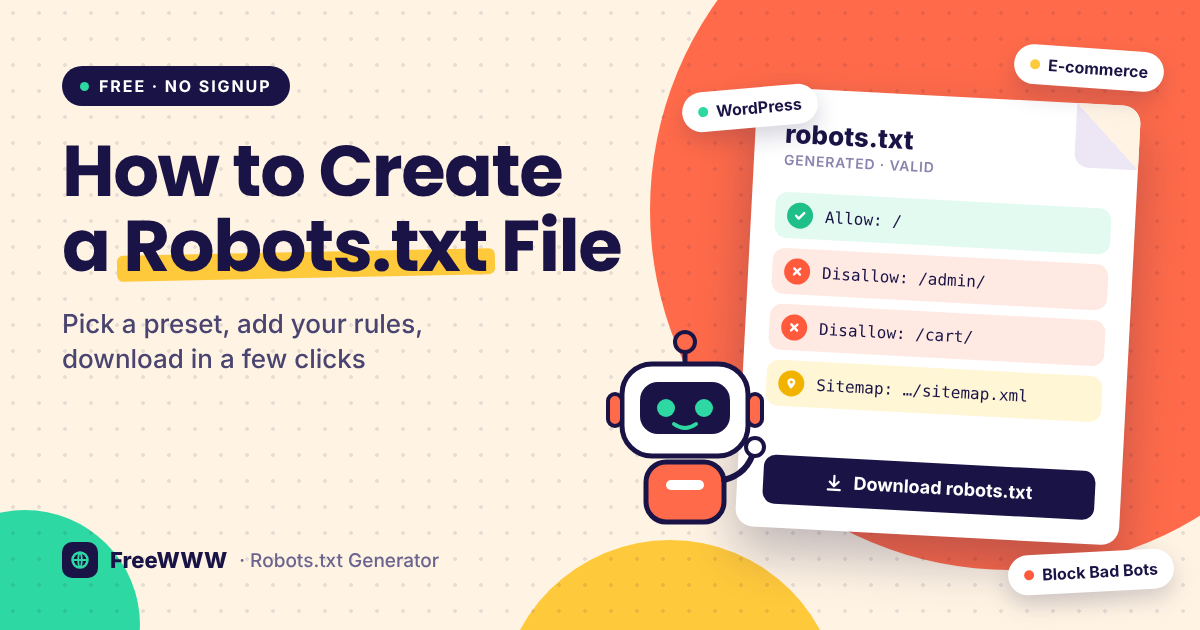
Quick answer: To create a robots.txt file, open the free FreeWWW Robots.txt Generator. Pick a preset, or add Allow and Disallow rules for each bot. Add your sitemap link. Click Validate, then download the file. Upload it to the top folder of your site. It should then open at yoursite.com/robots.txt.
Key takeaways
• A robots.txt file tells crawlers which pages they may visit.
• It must be named robots.txt and sit at the root of your site.
• Google reads only four rules: User-agent, Allow, Disallow and Sitemap.
• It does not hide pages from Google. Use noindex or a password for that.
• WordPress, Shopify and Wix each have their own way to edit it.
How do you create a robots.txt file with FreeWWW?
No coding is needed.
1. Open the tool. Go to the FreeWWW Robots.txt Generator.
2. Pick a preset. Choose Allow All, Disallow All, WordPress, E-commerce or Block Bad Bots. Or start from scratch.
3. Add a rule. Pick a bot, such as All Bots, Google or Bing. Type a path, like /admin/. Choose Disallow, then click Add Rule.
4. Add your sitemap. Paste your full sitemap link.
5. Leave extras empty if unsure. Crawl Delay and Host are optional. Google ignores both.
6. Validate. Click Validate and fix any problem it shows.
7. Save the file. Click Download robots.txt, or Copy to Clipboard.
Already have a file? Use the Import tab to load and edit it.
How do you write a robots.txt file by hand?
The file is plain text, so you can type it yourself.
1. Open a plain text editor. Use Notepad or TextEdit, not a word processor.
2. Name the bot. Type User-agent: * on the first line. The star means all bots.
3. Add your rules. Type one Disallow or Allow line per path.
4. Add your sitemap. Type Sitemap: and then your full sitemap link.
5. Save it correctly. Name it robots.txt and save it as UTF-8 text.
Here is a full example file:
User-agent: *
Disallow: /admin/
Disallow: /cart/
User-agent: GPTBot
Disallow: /
Sitemap: https://example.com/sitemap.xml
The first group asks all bots to skip /admin/ and /cart/. The second group blocks only GPTBot. The last line shows bots your sitemap. Paths are case-sensitive, so /Admin/ and /admin/ are different.
How do you upload and test your robots.txt file?
Use these steps if you have your own hosting.
1. Upload it to the root. Use your host's file manager or FTP. Put it in the same folder as your homepage.
2. Open it in a browser. Visit yoursite.com/robots.txt in a private window.
3. Check Search Console. Open the robots.txt report. It shows if Google fetched your file.
4. Test a page. Use the URL Inspection tool to see if a page is blocked.
5. Ask for a recrawl. After a big change, request a recrawl in the same report.
How do you create a robots.txt file on WordPress, Shopify or Wix?
Site builders handle the file in their own way. Some don't let you edit it at all (Google).
WordPress
1. WordPress shows a virtual robots.txt when no real file exists.
2. In Yoast SEO, go to Tools, then File editor (Yoast).
3. Click Create robots.txt file. This real file replaces the virtual one.
4. Paste rules from the generator's WordPress preset and save.
Shopify
1. Shopify creates a default robots.txt that works for most stores.
2. To change it, add a robots.txt.liquid template to your theme (Shopify).
3. Save a copy of your current file first.
4. Compare old and new versions in the Code Diff Tool before you publish.
Wix
1. In your dashboard, open SEO & GEO.
2. Under Tools and settings, click Robots.txt Editor.
3. Click View File, add your rules and save.
4. To undo, choose Reset to Default.
How do you block AI crawlers with robots.txt?
1. Know the bots. OpenAI's GPTBot collects training data. OAI-SearchBot finds pages for ChatGPT search.
2. Know Google's token. Google-Extended controls Gemini training. Blocking it does not affect Google Search (Google).
3. Use the preset. Pick Block Bad Bots in the generator. Check that the preview lists the bots you want.
4. Add one group per bot. Type User-agent: GPTBot, then Disallow: / on the next line.
5. Keep the bots you need. If you block OAI-SearchBot, your pages won't show in ChatGPT search answers.
Some bots ignore robots.txt, so this is a request, not a wall.
Which method should you use?
• New to robots.txt? Use the FreeWWW generator.
• Self-hosted WordPress or store? Start with the WordPress or E-commerce preset.
• On Shopify or Wix? Use your platform's editor.
• Building a staging site? Use Disallow All, and remove it before launch.
• Small blog? Allow All plus a sitemap line is often enough.
Why does a robots.txt file matter?
Google says robots.txt mainly stops bots from overloading your site. It can also help bots skip unimportant or similar pages (Google).
Mistakes can hurt. Disallow: / under User-agent: * asks every bot to skip your whole site. If the file returns a server error, Google pauses crawling for up to 12 hours (Google).
Frequently asked questions
Where do I put my robots.txt file?
At the root of your site, like example.com/robots.txt. Each host gets one file.
Does every website need a robots.txt file?
No. If Google finds no file, it assumes there are no limits.
Can robots.txt stop Google from indexing a page?
No. A blocked page can still be indexed if other sites link to it. Use noindex instead (Google).
Does Google support Crawl-delay?
No. Google reads only User-agent, Allow, Disallow and Sitemap (Google).
How do I block AI bots with robots.txt?
Add a Disallow rule for each bot token, such as GPTBot (OpenAI).
What does "Disallow: /" mean?
It asks that bot to skip every page on your site.
Is robots.txt case-sensitive?
Paths are case-sensitive. Bot names, like Googlebot, are not.
How big can a robots.txt file be?
Google reads up to 500 KiB. It ignores anything after that.
How long until Google sees my changes?
Google usually caches the file for up to 24 hours. You can request a recrawl sooner.
Is the FreeWWW Robots.txt Generator free?
Yes, like every tool on FreeWWW. No signup is needed, and most FreeWWW tools run in your browser