How to Print Without Black Ink: Free Online Tool
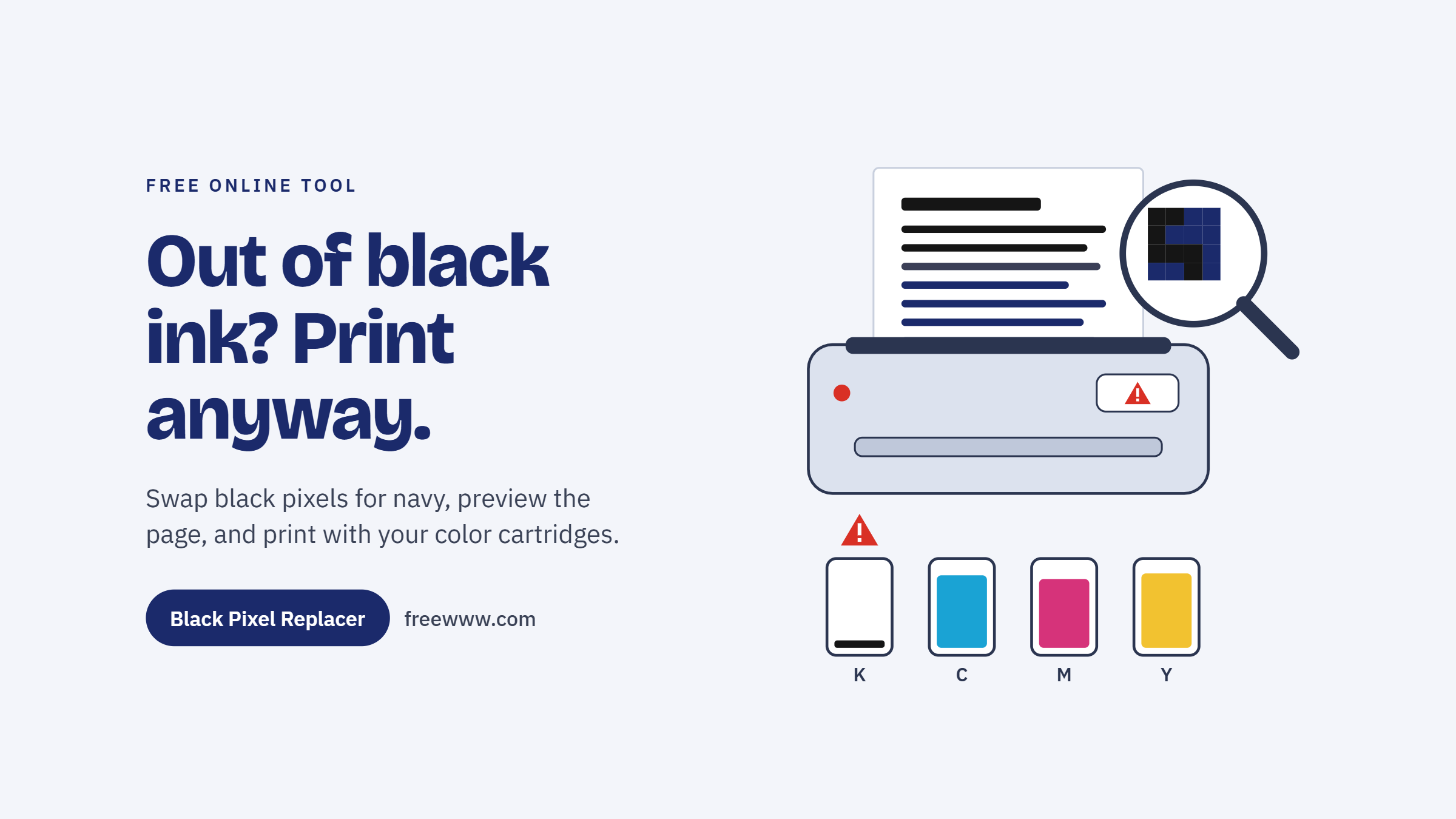
Out of black ink but still have a document you need to print? One option is to replace the document's black or near-black pixels with a dark color such as navy before sending it to your printer.
FreeWWW's Black Pixel Replacer lets you upload a PDF or image, choose a replacement color, adjust how aggressively black is detected, preview the result, and download the converted file.
Important: this workaround only helps if your printer supports printing with the available color cartridges when black is empty. Some printers require all cartridges to contain ink, so check your printer model before relying on this method.
Why Your Printer Stops When Black Runs Out
Many inkjet printers use a CMYK-based color system with cyan, magenta, yellow and black inks, although printer designs vary. Black text is often handled through the dedicated black channel because it can produce dense, sharp text efficiently.
When that cartridge is empty, one of two things usually happens. Some printers block the job entirely. Some printer workflows can create dark or composite blacks by combining color inks, depending on the printer, driver, color-management settings and media. That can affect both ink usage and the appearance of the result.
The better approach is to change what you send. If the document contains no black pixels, the printer has far less reason to reach for the empty cartridge.
How the Tool Works
The Black Pixel Replacer processes the visual pixels in an uploaded PDF or image and replaces pixels that meet the selected black-detection threshold with the chosen replacement color. The result can be previewed before downloading.
What Is the Black Pixel Replacer?
The Black Pixel Replacer is a free browser tool from FreeWWW that scans your PDF or image and swaps every black or near-black pixel for a dark color you choose. Navy text on white paper reads almost exactly like black text, yet your color cartridges print it.
It is the quickest way to print without black ink when you have no time to dig through printer menus.
Supported Files and Formats
The tool accepts PDF, JPG, PNG, GIF, BMP, TIFF, and WEBP files. You can drag and drop several files at once, check their combined size before processing, and clear the queue with one click.
Privacy by Design
Because processing happens in the browser, the tool is designed so the uploaded files are processed locally rather than sent to a remote server. That can be useful when working with documents you prefer to keep on your device.
Key Features That Make It Work
Adjustable Black Detection Precision
A precision slider decides how dark a pixel must be before it gets replaced. At the low end, only pure black changes. Slide it higher and dark grays, such as antialiased text edges and scanner shadows, convert too. The default of 15% suits most digital documents, while Scanned pages may need a higher setting because text and backgrounds can contain dark gray pixels rather than pure black.
Five Preset Colors Plus Custom
Choose navy blue, dark green, maroon, purple, or brown, or set any custom color. Navy is the safest pick for formal documents because it reads as black at a glance. Dark green and maroon work well for drafts and study notes. Purple and brown suit worksheets and creative projects.
Live Side-by-Side Preview
Before downloading, compare the original and processed versions side by side, or view either one alone. You catch problems, like a logo that should have kept its original look, before wasting paper.
Processing Summary
After each run, the tool reports how many files it processed, how many pixels it replaced, and which color it used. That count is a useful sanity check: A large document with substantial black or near-black content should normally show some replaced pixels. If the count is unexpectedly low, review the preview and consider increasing the precision setting. If the count is near zero, raise the precision slider and run the file again.
How to Print Without Black Ink in Five Steps
- Open the Black Pixel Replacer and drop your PDF or image into the upload area.
- Set the precision slider. Keep the default for clean digital files and raise it for scans or phone photos of documents.
- Pick a replacement color. Navy blue is the most neutral choice.
- Click Process Files, then review the side-by-side preview.
- Download the converted file and print it as usual.
If your printer still complains, open the print dialog and look for a color-only or "use color cartridges" option. Printer drivers can convert colors differently, so very dark colors may not always behave as expected. If your printer still reports a black-ink requirement, try a slightly lighter replacement color or use the printer's documented color-only mode.
Who Needs to Print Without Black Ink?
Students facing a deadline can convert lecture notes or an essay and print immediately.
Remote workers can produce signed forms and invoices without pausing work to buy supplies.
Small offices can stretch an expensive black cartridge by sending internal drafts through color ink instead.
Teachers printing worksheets in bulk can switch to dark green or purple, which also makes different handouts easier to tell apart.
Anyone handling sensitive files benefits from processing that never leaves the device.
Tips for the Best Results
- Test one page before sending a long document to the printer.
- Use navy blue for anything official, such as job applications, legal forms, or tickets.
- Raise precision for scanned documents, since scanners rarely produce pure black.
- Lower precision for photos so intentional shadows stay intact.
- Remember that color ink costs money. The goal is to keep working, not to print endlessly in color.
Is Printing Without Black Ink Safe for Long-Term Use?
There is no universal answer because printer designs differ. Replacing black in a document with another color changes the file, but it does not change the printer's cartridge requirements or maintenance behavior.
If your printer supports color printing while the black cartridge is empty, the converted document may be usable as a short-term workaround. However, printing dark text in color will consume cyan, magenta, yellow, or other available color inks, and some printers may still refuse to print when a cartridge is depleted.
For regular printing, replacing the empty black cartridge is the more reliable solution.
Need to Print Right Now?
Don't let an empty black cartridge stop an urgent document.
Replace black pixels with a dark color, preview the result, and see if your printer can print it using its available color inks.
Try the Free Black Pixel Replacer →
Frequently Asked Questions
1. Why does my printer still use black ink for dark colors?
Answer: Printers convert screen colors (RGB) into the four inks of the CMYK color model, and many drivers add some black to deepen dark shades. Very dark navy or green can still pull a little black. Choosing a slightly lighter custom shade reduces that.
2. Does the Black Pixel Replacer upload my files?
Answer: No. All processing happens inside your browser, so your documents never leave your device. Browser-based image tools typically read and rewrite pixels locally using the HTML Canvas API, which is why no server upload is needed.
3. What does the precision slider control?
Answer: It sets how dark a pixel must be before the tool replaces it. Low values change only pure black. Higher values also catch dark grays, which helps with scanned pages and the soft edges around text. The default is 15%.
4. Which replacement color looks most like black?
Answer: Navy blue. On white paper it reads as black at normal viewing distance, which makes it the best choice for job applications, contracts, tickets, and other official documents. Dark green and maroon are good for informal prints.
5. Which file formats are supported?
Answer: The tool accepts PDF, JPG, PNG, GIF, BMP, TIFF, and WEBP files. You can add several files in one session by browsing or by dragging and dropping them into the upload area.
6. Will every printer accept a document with no black pixels?
Answer: Not always. Some models refuse to print at all when any cartridge is empty, regardless of the file. Others offer a color-only mode in the print dialog or settings menu. Check your printer's manual or support page for its specific behavior.
7. Will the tool change photos inside my document?
Answer: Yes, if those photos contain pixels dark enough to pass the precision threshold. Use the side-by-side preview to check, and lower the precision setting if shadows or dark areas in photos change more than you want.
8. Is the Black Pixel Replacer free?
Answer: Yes. It is free to use, with no account and no signup. Open the page, add your file, choose a color, and download the result.
9. Does printing in color cost more than printing in black?
Answer: Usually, yes. Color printing can cost more for some documents because it may consume multiple color inks. Actual cost per page varies by printer, cartridge system, coverage and page content.
10. Can I see the result before I download it?
Answer: Yes. The preview offers side-by-side, original-only, and processed-only views. After processing, a summary shows how many files were handled, how many pixels were replaced, and which color was applied.